Managing date-specific availability just got a whole lot easier.
What’s new?
Previously
, you could add date-specific hours for only one date at a time, which made setting availability across multiple days slow and repetitive. With v2
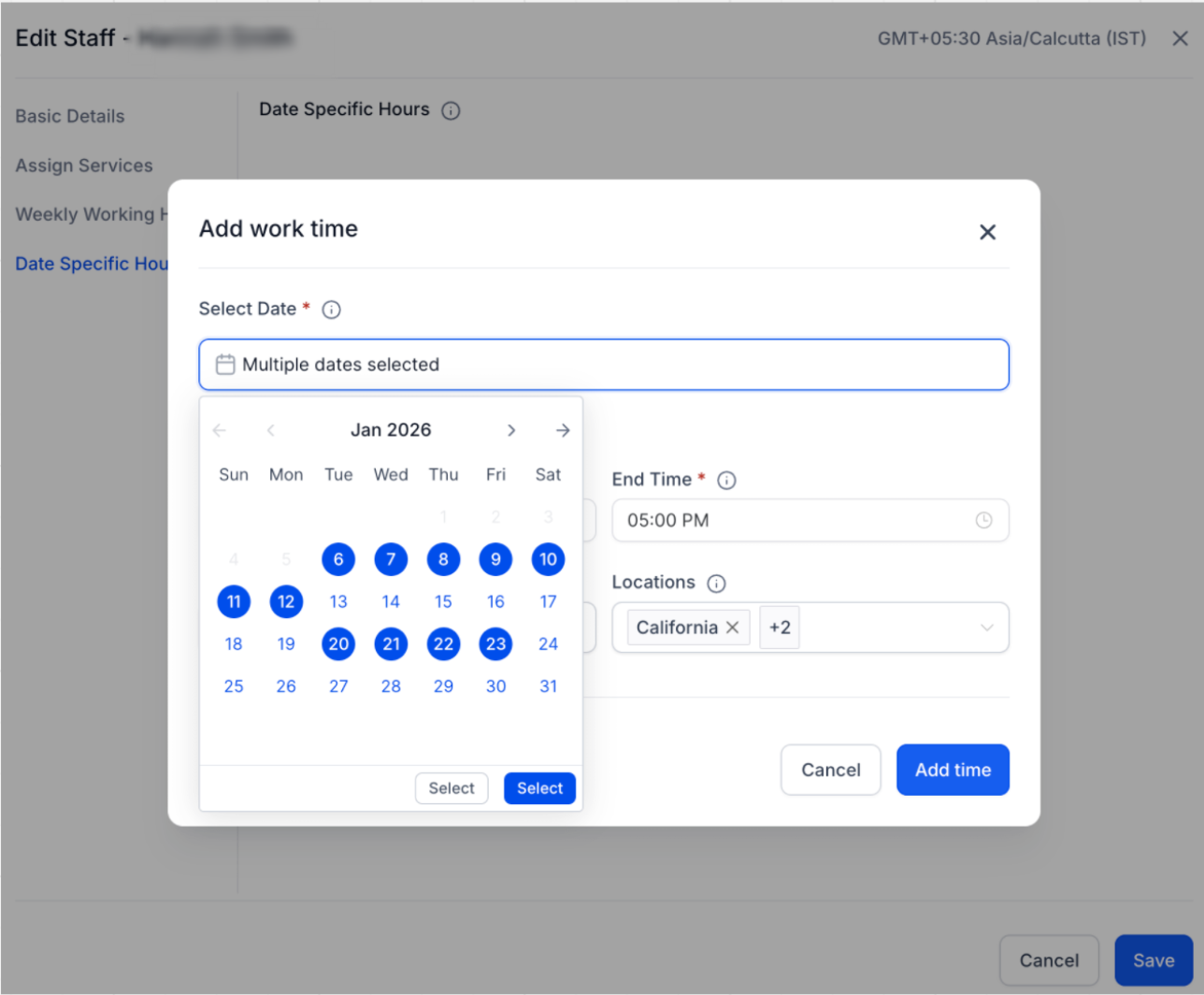
, you can now select multiple dates at once and apply the same working hours to multiple services and locations in one go.How it works
- Select multiple dates from the date picker when adding date-specific hours
- Set the start time, end time, services, and locations once
- Apply the setup in bulk across all selected dates
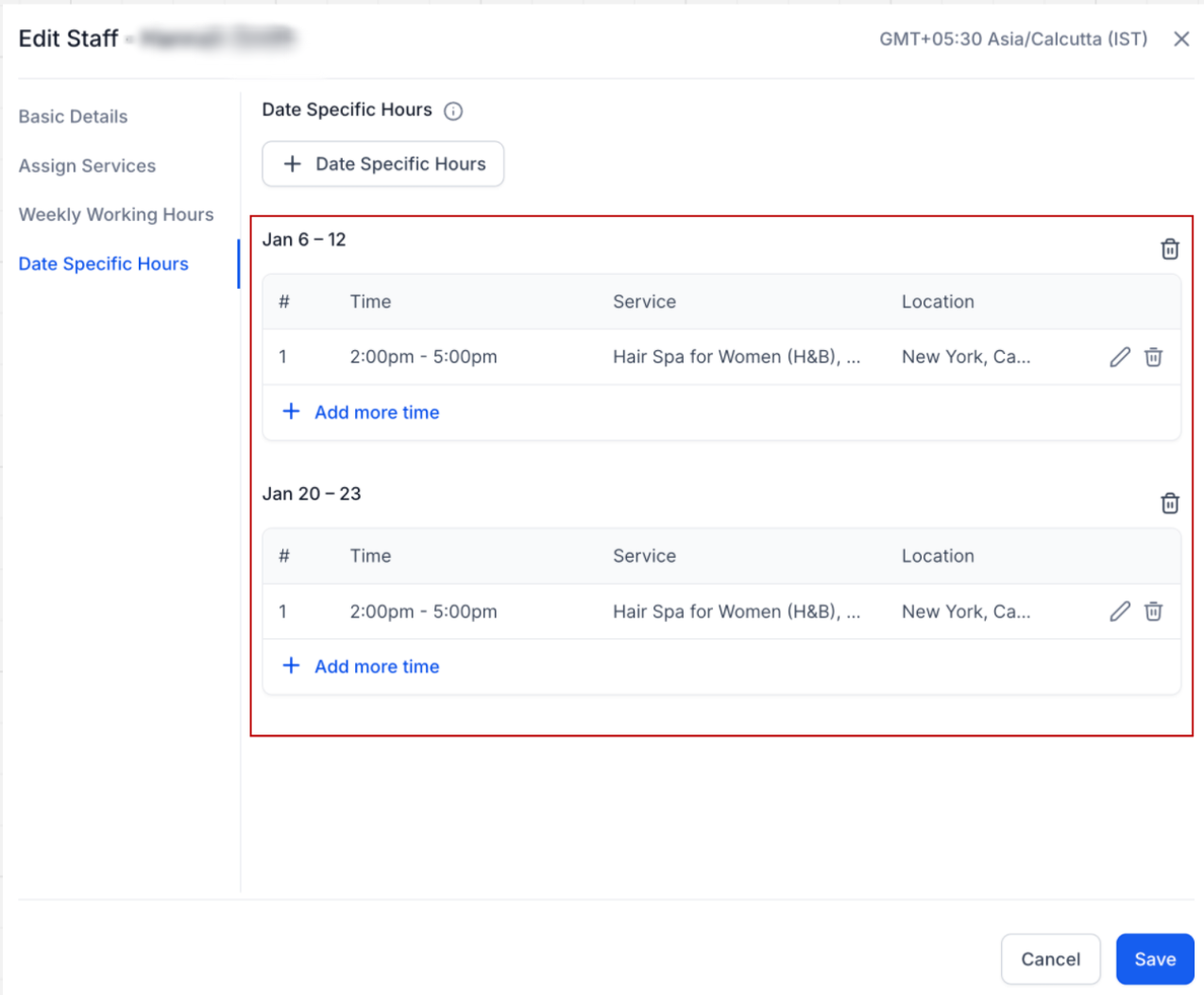
- Dates are automatically grouped for easier management
How date grouping works
When you select multiple dates, the system automatically groups consecutive dates together so they’re easier to manage later.
- Consecutive dates are grouped into a single block
- Non-consecutive dates are split into separate blocks
Example:
If you select
Jan 2, 3, 4, 5, 8, and 9
:- Jan 2–5will be grouped as one entry
- Jan 8–9will be grouped as another entry
You can edit or delete each group later without affecting others.
Why it matters
- Save time by avoiding repetitive date-by-date setup
- Cleaner organization with smart date grouping
- Easy edits even after bulk creation
- Faster setup for holidays, special schedules, or short-term availability changes
Was this article helpful?
That’s Great!
Thank you for your feedback
Sorry! We couldn't be helpful
Thank you for your feedback
Feedback sent
We appreciate your effort and will try to fix the article